How do you connect Claude or ChatGPT to FlybyOps? (MCP server)
Connect Claude or ChatGPT to your FlybyOps workspace with the MCP server at ai.flybyops.com/mcp: steps for each plan, who adds it, and approval settings.
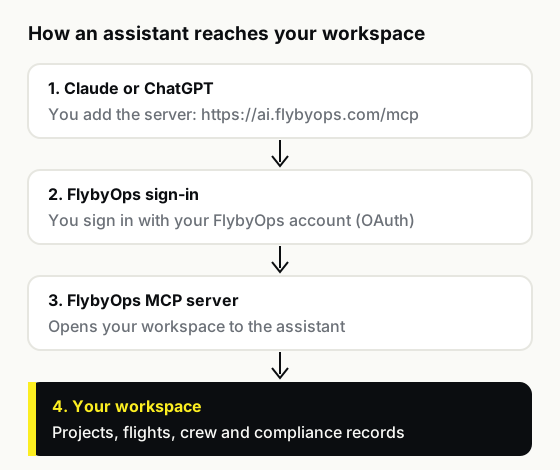
To connect Claude or ChatGPT to FlybyOps, add the FlybyOps MCP server, https://ai.flybyops.com/mcp, as a custom connector in Claude or a custom MCP server in ChatGPT, then sign in with your FlybyOps account. On a team plan, an owner or admin adds it once and everyone else then connects to it.
After that, you ask about your program in plain language and the answer comes from the records FlybyOps already holds, with no spreadsheet export in between. The setting that matters most is the easy one to skip: whether the assistant needs your approval before it changes anything.
What does the FlybyOps MCP server let an assistant do?
The Model Context Protocol (MCP) is an open-source standard for connecting AI applications to other systems. Claude and ChatGPT both support it. FlybyOps runs an MCP server, so either one can access your workspace data and take permitted actions across projects, flights, crew and compliance.
Access starts with your own FlybyOps sign-in. The server turns away any request without one. Once you're signed in, the assistant has your own role and project access and nothing more, so a Pilot's assistant sees only that Pilot's projects. Claude's help center says this sign-in happens "without Claude ever seeing your actual password".
The server isn't listed in the ChatGPT or Claude app directories, so you won't find it by searching inside either app. You add it by its address.
Before you start, you need a FlybyOps account in the workspace you want the assistant to reach. Any plan will do, the 14-day free trial included: the MCP server comes with all of them. On the assistant's side, your plan decides who does the setup:
| Plan | Who adds FlybyOps | Who uses it |
|---|---|---|
| Claude Free, Pro, Max | You | You |
| Claude Team, Enterprise | An owner | Each member |
| ChatGPT Pro | You (read access only) | You |
| ChatGPT Business | An admin or owner | Each member |
| ChatGPT Enterprise, Edu | An admin, or a member they allow | Each member |
How do I connect FlybyOps to Claude?
On Free, Pro or Max, you add it yourself. Claude's Free plan allows one custom connector, so FlybyOps takes that slot.
- In Claude, go to Customize, then Connectors.
- Click Add and choose the custom connector option.
- Name it "FlybyOps" and paste
https://ai.flybyops.com/mcpas the server URL. - Click Continue, check the authentication settings Claude detected, and click Continue again. Choose Sign in now or Sign in when needed, click Add, and sign in to FlybyOps when Claude asks.
- In a new chat, click + at the bottom left, open Connectors and turn FlybyOps on.
You're done when you can switch FlybyOps on in a chat. The same connector works in Claude on the web and in Claude Desktop. Claude reaches the server from Anthropic's cloud, not from your computer, so there's no network setting to change on your side.
On Team or Enterprise, it takes two people. Only Owners and Primary Owners can add a custom connector on Team. On Enterprise, so can anyone with a custom role that includes Manage access to Libraries. The owner goes to Organization settings, then Connectors, clicks Add, hovers over Custom, selects Web, and enters the same name and URL. After that, each member goes to Customize, then Connectors, finds FlybyOps in the list and clicks Connect to sign in with their own FlybyOps account.
That's what a drone program needs: everyone signs in to FlybyOps as themselves, not through a shared login.
How do I connect FlybyOps to ChatGPT?
ChatGPT treats a custom MCP server as a plugin. You create it on the web, not the mobile app, and you don't need to turn on Developer Mode first. Full support is on Business, Enterprise and Edu. Pro connects with read access only: fine for looking things up, no use for changing records.
- In ChatGPT on the web, go to Plugins.
- Select the plus button, then Add custom MCP server.
- Enter the name "FlybyOps" and, under Connection, paste
https://ai.flybyops.com/mcp. - Set up authentication for the server and sign in with your FlybyOps account.
- Read the risk warning, tick I understand and want to continue, then select Create as a plugin.
- In a chat, type @ and pick FlybyOps.
On Business, only admins and owners can create and publish the plugin. On Enterprise or Edu, admins can give selected members the "Create plugins with MCPs" permission, and only admins and owners can publish it to the workspace. Once it's published, members find FlybyOps under Settings, then Plugins. ChatGPT keeps the list of FlybyOps tools it saw at publishing, so when FlybyOps adds tools, members get them after an admin reviews and publishes the update.
Which approval settings should a drone program pick?
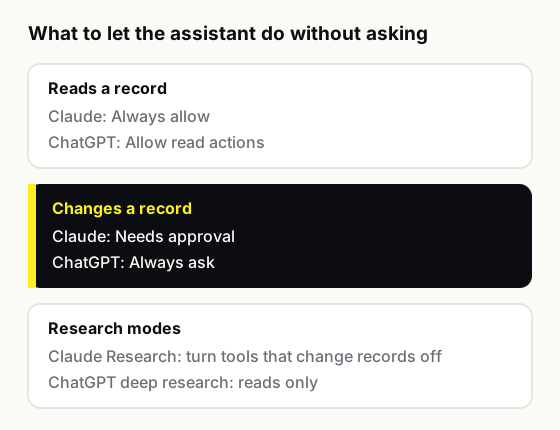
Let the assistant read freely and make it ask before it changes anything. Your FlybyOps workspace is your program's system of record: the flight logs, crew assignments and compliance records an auditor or a client asks to see. A wrong answer in a chat costs you a follow-up question. A wrong edit sits in the record until someone catches it. If a wrong edit gets through, the audit log shows it under the name of the person whose assistant made it.
Both assistants have a setting for it:
- Claude offers Always allow, Needs approval or Blocked for each tool or group of tools. Set tools that only read to Always allow and tools that change records to Needs approval. Claude's own advice is to use Always allow only for a server and tool "that you trust to run unsupervised."
- ChatGPT offers Always ask, Allow read actions, Allow low-risk actions or Allow all actions. Allow read actions is the right starting point. ChatGPT may also ask before a write action on its own, depending on the action, but don't count on it.
Research modes work differently. In Claude's Research mode, Claude can call your connectors' tools without asking each time, and Anthropic suggests turning off any tools that can make changes before you use it. ChatGPT's deep research only reads from custom plugins, so it can't change a record.
For a team, decide this once and have the owner or admin who added FlybyOps pass it on to everyone who connects. Don't leave each person to pick their own.
What can I ask once FlybyOps is connected?
Ask the way you'd ask a colleague who has the workspace open. Start with questions that only read records:
- "Which projects are active this month, and who's assigned to each?"
- "List the flights logged on the substation project last week."
- "Which of tomorrow's jobs don't have a pilot assigned yet?"
- "Summarize the open compliance items for the wind farm project."
Flight logs, incidents and documents already sit in one workspace, so one question covers all of them.
Frequently asked questions
Do I need a developer to set this up?
No. There's no code to write and nothing to host or install: FlybyOps runs the server. If you can paste a URL and sign in, you can do it.
Can I use FlybyOps in Claude on my phone?
Yes, once it's connected. Claude says a connector you add on the web or desktop is available the next time you sign in on Claude for iOS or Android. Adding it from the phone is still in beta, so set it up on the web or desktop.
What happens to someone's access when they leave the team?
A workspace admin removes them from the workspace, and their access to every project, job, flight and incident in it ends at once. FlybyOps checks workspace membership on every request, and their assistant signs in as them, so it's cut off too.
The records they created stay, with their name on them, and the audit log keeps their history. For a contractor whose job has ended, see how contractor access works in FlybyOps.
See it in action
Bring your drone program onto one record
FlybyOps gives enterprise drone teams a single audit-grade record for projects, flights, equipment, risks and incidents. Start free — 14-day trial, no credit card.
Start free trial